
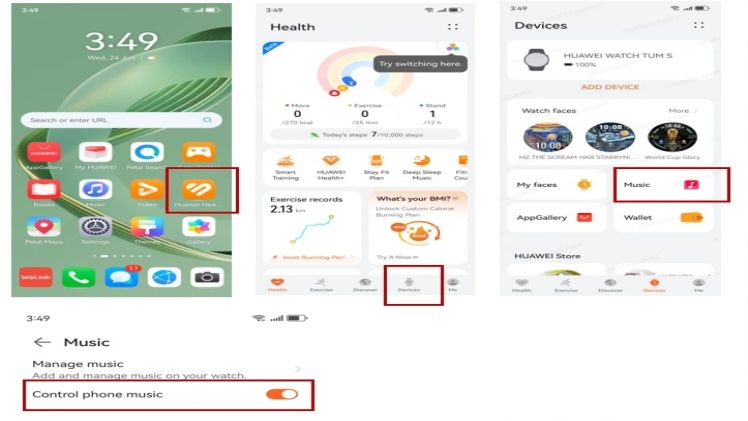

Spotify may work normally on a Huawei phone while the paired watch shows no song information, cannot skip tracks, or loses control after the phone screen turns off. In most cases, this does not mean that Spotify itself has stopped working. The issue is usually linked to the connection between the phone and the watch, app permissions, background activity settings, or the specific limits of the watch model.
For example, if Bluetooth pairing is unstable, the watch may fail to receive real-time playback information from the phone. If Spotify or the Huawei Health app is restricted from running in the background, music controls may stop responding once the phone screen is locked. Some Huawei watch models may also support only basic media controls, which means the available functions can vary depending on the device, software version, and phone settings.
To fix these problems, users should first check that the watch is properly connected through the Huawei Health app, then confirm that Spotify is allowed to run in the background on the phone. It may also help to update Spotify, Huawei Health, the phone system, and the watch firmware to the latest available versions. If the watch still cannot display songs or control playback, restarting both devices and reconnecting the watch can often restore basic media control.
Check the Spotify Installation First
Open AppGallery and update Spotify before changing other settings. New users can follow the official huawei watch spotify instructions for finding and installing Spotify on a Huawei phone. If it is missing from search, update AppGallery and review the HUAWEI ID region.
Reconnect Huawei Health and Bluetooth
Confirm that the watch is connected in Huawei Health. Toggle Bluetooth, keep the devices close together, and reopen Huawei Health. Restart both devices if the connection remains unstable. Pair the watch again only after the simpler checks fail.
Allow Background Activity
The huawei watch spotify controls may stop when Huawei Health or Spotify is restricted in the background. Allow both apps to run automatically, remove unnecessary battery limits, and grant Bluetooth or nearby-device access where requested.
Start Playback in the Right Order
Play a track in Spotify on the phone first, then open the watch music card or Music screen. If controls are still missing, change tracks, reopen Spotify, and check whether another audio app has taken over the phone media controls.
Know What the Watch Supports
Phone playback controlled from the wrist does not guarantee a standalone Spotify app, independent streaming, or offline Spotify playlists on every Huawei watch. Wear OS instructions apply only to Wear OS devices. Some Huawei models support compatible local music transferred through Huawei Health, which is a separate feature.
Update and Retest
Update Spotify, Huawei Health, the phone system, and watch firmware, then restart both devices. Test controls with the phone locked. For a clean reinstall and the original AppGallery route, use the huawei watch spotify guide.






Leave a Comment